Posts

Showing posts from 2016

How To Fix Dead Tecno Camon C8 Devices

Image
This simple guide will teach you how to fix a dead Tecno Camon C8. So many of us,  mostly trial versions testers, are into frequent upgrading & downgrading of ROM. But what if you mistakenly shifted your laptop or cable & your phone refuses to respond at all? It happened to me so, I used this method to unbrick my prestigious Camon C8, it will surely work for every other MTK device.

How To Make G00gle Assistant Work On Any Android Devices

Image
This brief tutorial will school you on how to make G00gle Assistant work on your Android device, no matter the OS you are running. Stay back and read carefully. After doing away with it's popular Nexus line-up, yours truly G00gle, has finally become a mainstream Android manufacturer with Pixel. One of the most stunning features of g00gle Pixel is the new AI assistant which seems like a nice alternative to Siri, and you’ll be very glad to know that there is a way to enable G00gle Assistant on any Android device, meaning that you don't necessarily need to buy a pixel phone. While there are a lot of reasons you would want to get one, I don't think most Android users won’t be jumping the ship right away. However, to get the best of AI and personal assistance, you will need the following things to get started. 1. An Android device running Android 7.0 Nougat or higher. Android 7.0, I  know most OEMs haven't upgraded their devices to 7.0 yet but if yo...

Steps On How To Use Miracle Box To Flash MTK Android Devices

Image
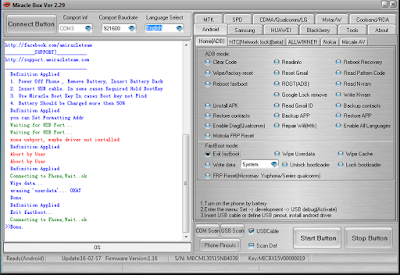
This simple steps will guide you on how to use Miracle Box to Flash Android MTK Devices. Required Downloads: Download Miracle Box Latest Version 227A Download Eagle Eye Miracle Box Version 227A Here are the steps:  Step #1. Download Miracle Box from the Download Section below this guide. Step #2: Extract the Miracle Box zip file into a folder on your PC. Step #3: Locate Miracle loader.exe from within the Miracle Box folder and double click it to launch the Miracle loader.exe (preferably, launch it as administrator). Step #4. Wait till Miracle Box opens and the Dashboard is fully loaded. Step #5. Click the MTK Tab and then, tickets Write. Step #6. Select the phone's chipset from the dropdown menu e.g MT6589. Step #7: Click the folder icon visible to you. Step #8: In the window that pops up, browse or navigate to the folder where you have the stock ROM firmware for the MTK Android device you wish to Flash and sel...

How To Flash Android 7.0 Nougat on Nexus Devices

Image
With Android 7.0 Nougat, Google seems to be getting even faster at offering OTAs, with half our team already having the OTA downloaded and installed. Still, not everyone will probably get it that fast, and sometimes you don’t want to wait. Or perhaps there’s a reason you want a clean install (too much old bloat on your device, etc). In those situations, starting from scratch is certainly worth considering. If you’ve never done it before, there are a few hoops to go through, but nothing too difficult. Nougat is here, though getting it to all devices is a whole other story. For those that are familiar with flashing, there’s really nothing new about this process with Android 7.0. That said, if you’ve never unlocked the bootloader in your Nexus 6P or 5X, it is worth noting that you absolutely need the latest version of the Android SDK (which you should install anyhow) — as these devices only recognize the new command for unlocking the bootloader – fastboot flashing unlock...

Download Lava Factory Stock Firmware

Image
Download Lava Factory Stock Firmware. To download and learn how to use SP Flash Tools to un-brick your phone, click here and to download and learn how to create scatter file and ROM Backup using MTK Droid Tools click here In no particular order, download Lava Stock ROM Lava Iris 250 Android 4.2  Download

Download Spice Stock Firmware

Image
Download  Spice Stock Firmware. To download and learn how to use SP Flash Tools to un-brick your phone, click here and to download and learn how to create scatter file and ROM Backup using MTK Droid Tools click here In no particular order, download Spice smartphone firmware below. Spice Mi-285 Android 2.3 Download

Download All Nexus Factory Stock ROM

Image
Download all Nexus Stock Firmware ROM Nexus 4 Android 4.2.2 Download Nexus 4 Android 4.4 Download Nexus 4 Android 4.3 Download Nexus 4 Android 4.4.3 Download Nexus 4 Android 4.4.2 Download Nexus 4 Android 5 Download

How To Install adb Fastboot On Android Devices

Image
This tutorial explains how to install ADB, Fastboot and their drivers. Requirements Install Mediatek (MTK) drivers on the PC using the PdaNet method click here to download Download the ADB, Fastboot & Drivers Installer click here to download Run the Installer as Administrator For Do you want to install ADB and Fastboot? tap the Y key then press Enter For Install ADB system-wide? tap the Y key then press Enter Wait till its complete For Do you want to install device drivers, tap the Y key then press Enter In the installer Wizard that pops up, click Next Click Finish when done Go to My Computer / Local Disk ( C: ) , you should see a folder named adb To run ADB or Fastboot, open the ADB folder Hold down the SHIFT key on the keyboard While holding SHIFT, right-click on an empty space in the ADB folder Select Open command window here. This method is very simple please proceed and apply with caution!!

How To Unlock Moto X Play Bootloader

Image
This simple tutorial will teach you how to unlock Moto X Play bootloader. This device is the third generation Moto X smartphone which was launched by Motorola. The smartphone comes with amazing design and good hardware configuration. Moto X Play has a 5.5-inch display screen. The display which comes with this smartphone is a capacities touchscreen corning Gorilla glass 3 protection display. You will get resolution of 1080 X 1920 pixels with the display of the Moto X Play. The device comes with powerful hardware as you get a 1.7 GHz Octa core processor and 2 GB RAM. One of the best things about the Moto X Play is the camera. The smartphone is powered with a 21 Mega pixel camera which you can use to capture amazing shots. If you want to unlock bootloader of Moto X Play you are at the right place. Today in this guide we are going to tell you how to unlock bootloader of Moto X Play. Requirements To learn how to root this device, click here 1) Your Moto X Play smartphone sh...

Download BLU Stock ROM

Image
Download BLU Stock ROM BLU A010L-V10 BLU Advance A270a-V07 BLU T174-V07 BLU Star 4.0 S410A BLU Dash 5.0 D410i-V28 BLU Dash 5.0 D410a-V14 BLU Studio 6.0 D651-V03 BLU Studio 6.0 D650 V31 BLU Dash JR D140-V14 BLU Dash JR 4.0 D142K-V16 BLU Dash JR Social D140S-V16 BLU Dash JR TV D140T-V20 BLU Disco Pro TV Q360T-V1 BLU Dash D410a-V14 BLU Dash Music II D330-V20 To learn how to flash this ROM Using SP Flash Tools click here Note: All Instructions, flash tools, drivers and ROM files are contained in the Zip folder. Goodluck!!!

How To Flash and Upgrade Spreadtrum Device Using SPD Tools

Image
This brief tutorial will guide you on How to flash, upgrade spreadtrum device using SPD Tool Click here to download SPD Upgrade Tool Procedure 1. Open the Research download tool > bin folder 2. Launch Research Download.exe 3. Click on the Load Packet icon (top left corner) 4. In the window that pops up, navigate to the location of the .pac file, select it then click Open 5. The pac file should now be loaded (its name should appear at the top) 6. Click the Settings Icon (top left corner) 7. In the box that pops up, uncheck any item(s) you do not wish to flash then click OK. Ignore this step if you wish to flash all files 8. Click the Start downloading button 9. You should see Waiting.... under the Progress bar 10. Switch off the phone (still with battery inside) then connect it to the PC via USB cord (note that you might need to hold the volume decease button while connecting to PC on some phones) and flashing should begin. DO NOT interrupt 11. Once ...

How To Use Blackberry IMEI Generator For Use on Android Devices

Image
It took me by surprised to notice that most of you that want to change your android IMEI to that of blackberry are still going from one dust bin to the other searching for condemned blackberry to extract its IMEI. This tutorial will brief you on how to use Blackberry IMEI generator for use on Android. If you are wondering why people will want to change their android IMEI to that of blackberry then you are still missing in action, but never too worry, I will tell why. You all know that BIS data is very cheap now on all the major networks available in the country, and that N1k will give you a whooping 3GB worth of BIS data for the month. For long now a lot people have been grooving this cheap BIS data on their android devices with GLO lines as result of being able to change their Android IMEI to that of a Blackberry. And the good thing is that up till this very moment, it is still blazing like wild fire on android and on PC via android tethering. IMEI stands ...

Download And Install Android Lollipop 5.1 MIUI 7 Custom ROM For Infinix X507

Image
To all users of Infinix Hot x507 who has been requesting for an "OK" custom ROM for their Infinix hot x509 smartphone, we are glad to finally drop as requested what we've been expecting for you guys.  After many hours of ensuring this awesome ROM goes well on Infinix Hot x507,   Infinix Club has p resented Miui v7 for Hot x507. This ROM is best bugles custom ROM for Infinix hot. I'm sure by now, most of you must have ported to the official lollipop 5.1 upgrade Infinix mobility recently rolled out for its Hot x507 users, but if you're a Miui fan and also love trying   things out on your smartphone, I'll say you should try this awesome Miui v7 custom ROM. The ROM file is in a RAR file format which in it, contains the Miui 7 ROM in zip form, the recovery you will be using, [ PhilZ Recovery ]. You can flash the recovery using either MTK Mobile Uncle Tools or SP Flash Tool, whichever you prefer and a folder containing Next Launcher and the...

How To Install Carbon 5.1 Lollipop Custom ROM For Tecno H6 And Boom J7

Image
This meth od will teach you how to simply install carbon 5.1 lollipop cust om ROM for Tec no H6 and Boom J7. Carbon ROM is solely built with elegant design, light-weight and beautiful fast. It’s a Lollipop established ROM on cyanogenmod12.1 and it has 3.4.67 kernel which makes it compatible on   MT6582   Android phones running 4.4.X   K itkat OS, such as Tecno H6 and Boom J7. Nevertheless, in this customized ROM, all bugs are fixed and extended battery saver mode. Before we proceed to install this ROM, I hope your device is rooted and also   C lockworkmod ( CWM ) recovery being installed.   To learn ho w to   Root your device,   click   here   and   go  here  to install   C lockworkmod recovery. How To Install BlissPOP ROM On Tecno H6 and Boom J7 Enable USB Debugging on your device by simply going to Settings >> Developers Option. If the developers option isn’t visible on your device, simply go ...

Download And Install Android 6.0 Marshmallow For Infinix Note 2 X600

Image
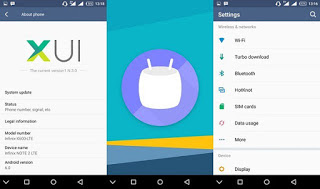
This tutorial will teach you how to download a nd Install Android 6.0 Marshmallow f or Infinix Note 2 X600 Flash Version: Click here to download and flash using   SP Flash-tool TCard Version - Recovery Version: Click here to download and flash via recovery mode. NOTE:    If you have rooted your device, do not attempt to install TCard version via recovery mode, you'll end up bricking your device. Use flash version instead and install via Sp Flash Tools Version Update:   1) XUI upgraded to 1.N.3.0 2) Fixed issue where front camera cannot be accessed by non-system apps.   3) Added video call (only usable if SIM card supports this function).   4) Fixed one-hand mode malfunction   5) Fixed issue where Direct Call widget does not display contact avatar.   6) Removed pin number notification from pull down bar when Mobile Anti-Theft is activated.   7) Fixed button overlap with "Just once - Always" and “Home- Back”.   8) Bat...

How To Install CM 12.1 OS 5.1 Lollipop On Tecno Phantom Z And Z Mini

Here is a fully functional and working CM12.1, android 5.1 Lollipop for your Tecno Phantom Z and Z mini. Since this ROM is based on CyanogenMOD 12.1, it has all the features of the CM12.1. This brief tutorial guide you on how to install CM 12.1 OS 5.1 Lollipop on Tecno Phantom Z and Z Mini inclusive. Features of Cyanogen MOD 5.1 OS Android 5.1 Base Updated Sync Latest Google Now luncher Stable Battery Management Better and Stable ROM Temperature Hotspot and Wifi Sync Working fine Smoother Graphics Faster Boot-time Builtin Google Apps and more *Everything works Here`s how you can flash Tecno Phantom Z and Z mini To flash this ROM on your Tecno Phantom Z and Z mini, you only need to flash any custom recovery on your device and follow the straight instructions that follow below: 1. Flash TWRP or CWM Custom Recovery on your Tecno Phantom Z or Z mini. If you don't know how, read ahead. 2. Click here to download the CM12.1 Custom ROM for Tecno Phant...

Download BlissPOP ROM OS 5.1 Lollipop For Tecno Phantom Z and Z Mini

Image
BlissPOP ROM is one of the best Custom ROMs for Tecno smartphones. This ROM is known to be the Emperor of all Lollipop based ROMs because of its simplicity and elegant design. The ROM comes with high customization and works perfectly on MT6592 devices running on android Kitkat, like Tecno Phantom Z and Phantom Z mini. However, in this custom ROM, all bugs fixed and improved battery saver mode. In this guide, I w ill teach you th e simple methods on how to install BlissPOP ROM on Tecno Phantom Z & Z Mini smartphones. Note: You device must be rooted, click here to learn how How to Install BlissPOP ROM on Tecno Phantom Z & Z Mini Step 1: Enable USB debugging on Tecno device, simply go to settings >> Developers option. If the developers option isn’t visible on your device, simple go to “ About Phone ” under settings, then scroll to “ Build number ” and tap up to seven times to make the developers option visible. Step 2: After that, do...