Steps On How To Use Miracle Box To Flash MTK Android Devices
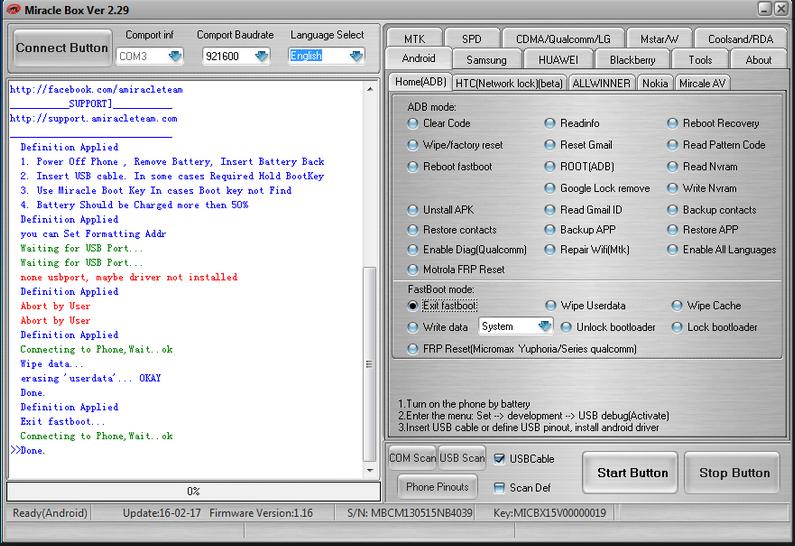
This simple steps will guide you on how to use Miracle Box to Flash Android MTK Devices.
Required Downloads:
Here are the steps:
Step #1. Download Miracle Box from the Download Section below this guide.
Step #2: Extract the Miracle Box zip file into a folder on your PC.
Step #3: Locate Miracle loader.exe from within the Miracle Box folder and double click it to launch the Miracle loader.exe (preferably, launch it as administrator).
Step #4. Wait till Miracle Box opens and the Dashboard is fully loaded.
Step #5. Click the MTK Tab and then, tickets Write.
Step #6. Select the phone's chipset from the dropdown menu e.g MT6589.
Step #7: Click the folder icon visible to you.
Step #8: In the window that pops up, browse or navigate to the folder where you have the stock ROM firmware for the MTK Android device you wish to Flash and select the firmware for the phone model. It should be in .bin format and then click Open it.
Step #9. Click the Start button.
Step #10. Switch off the phone (with a charged battery inside it) then connect it to the PC via USB cord. Miracle Box should detect the phone almost immediately.
Step #11. Miracle box should begin flashing the firmware, wait till it gets to 100%.
Step #12. Once it gets to 100%, close Miracle box and disconnect the phone.
At this point you have successfully flashed stock ROM firmware on your MTK Android device using Miracle Box.
Congratulations!!!


wow, this is really really helpful!!!1
ReplyDeleteThanks for your feedback Mukuka.
DeleteGreat
ReplyDelete